How to add an SRT file to an MP4
You don't convert an SRT into an MP4; you put the two together. Add the subtitles as a track viewers can switch on and off, or burn them into the picture so they always show. Both are free.
No SRT yet? Make one from your video.
First, soft or burned in?
| Soft subtitles | Burned in | |
|---|---|---|
| Can viewers turn them off? | Yes | No, they are part of the picture |
| Re-encodes the video | No, takes seconds | Yes, takes as long as an export |
| Several languages in one file | Yes, one track each | No, one language per file |
| Shows in every player | Not all: some web players ignore the track | Yes |
| Use it for | Files you share or archive, players like VLC | Social feeds that autoplay muted |
Uploading to YouTube or Vimeo? Do neither: upload the video and the .srt separately (see YouTube), so viewers get a captions button.
FFmpeg: one command either way
FFmpeg is free for Windows, macOS and Linux. Run the command in the folder that holds both files. Burn the subtitles in:
ffmpeg -i video.mp4 -vf "subtitles=subs.srt" -c:v libx264 -crf 22 -c:a copy output.mp4-crf 22 sets the quality (lower is better and bigger) and -c:a copy keeps the audio as it is. To change the size or outline of the text:
ffmpeg -i video.mp4 -vf "subtitles=subs.srt:force_style='Fontsize=24,Outline=2'" -c:v libx264 -crf 22 -c:a copy output.mp4Add a soft track instead. Nothing is re-encoded, so it finishes in seconds:
ffmpeg -i video.mp4 -i subs.srt -c copy -c:s mov_text -metadata:s:s:0 language=eng output.mp4MP4 stores subtitle tracks as mov_text, which is why the command converts the SRT. For two languages, add a track per file:
ffmpeg -i video.mp4 -i en.srt -i es.srt -map 0:v -map 0:a -map 1 -map 2 -c:v copy -c:a copy -c:s mov_text -metadata:s:s:0 language=eng -metadata:s:s:1 language=spa output.mp4HandBrake: no command line
- Open HandBrake (free from handbrake.fr) and open your MP4.
- In the Subtitles tab, choose Tracks → Import Subtitle and pick the .srt.
- Tick Burn In to burn it in; leave it unticked for a soft track.
- Click Start Encode.
In a video editor
Premiere Pro: in the Text panel (Window → Text), choose Import captions from file and pick the .srt. When you export, the Captions section lets you burn them into the video or save a sidecar file.
DaVinci Resolve: import the .srt into the Media Pool and drag it onto the timeline. On the Deliver page, the Subtitle Settings choose between burning it in and exporting it as a separate file.
CapCut imports an .srt as captions you can restyle before exporting. iMovie can't import SRT; burn the subtitles in with HandBrake first, then edit that MP4.
Just watching? VLC needs no merging
Give the two files the same name, like talk.mp4 and talk.srt, in the same folder. VLC loads the subtitles when you open the video. If it doesn't, use Subtitle → Add Subtitle File. The MP4 itself isn't changed, so the .srt has to travel with it.
YouTube
Upload the video, then in YouTube Studio open Subtitles, add a language, choose Upload file and With timing, and pick the .srt. Add another .srt for each language.
Fix the SRT before you burn it in
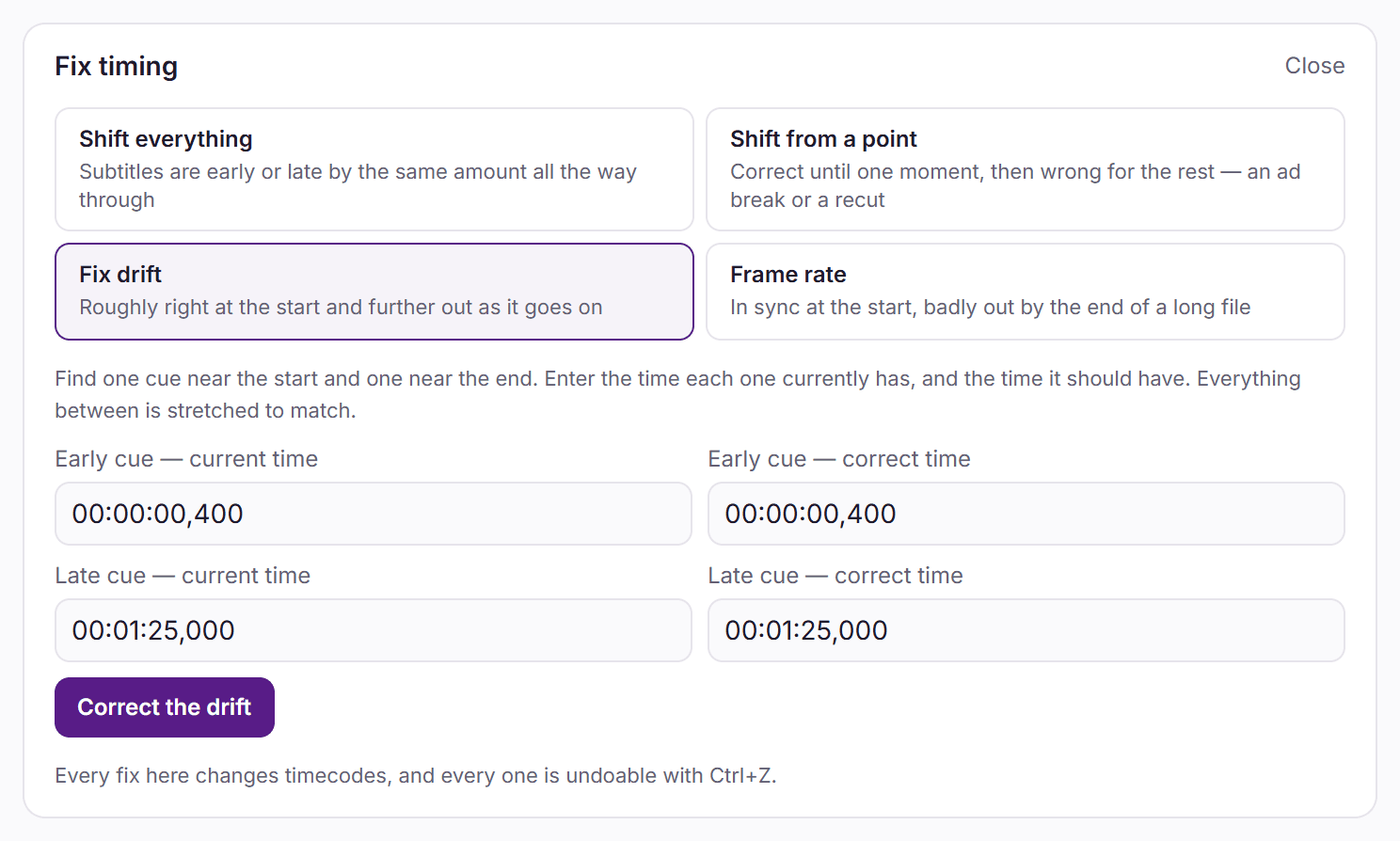
Burned-in subtitles can't be corrected later without exporting again. Open the file in the free SRT editor first: shift subtitles that are early or late, fix drift, re-break lines that are too long for the screen, and check reading speed.
It runs in your browser; the file isn't uploaded.
No SRT yet?
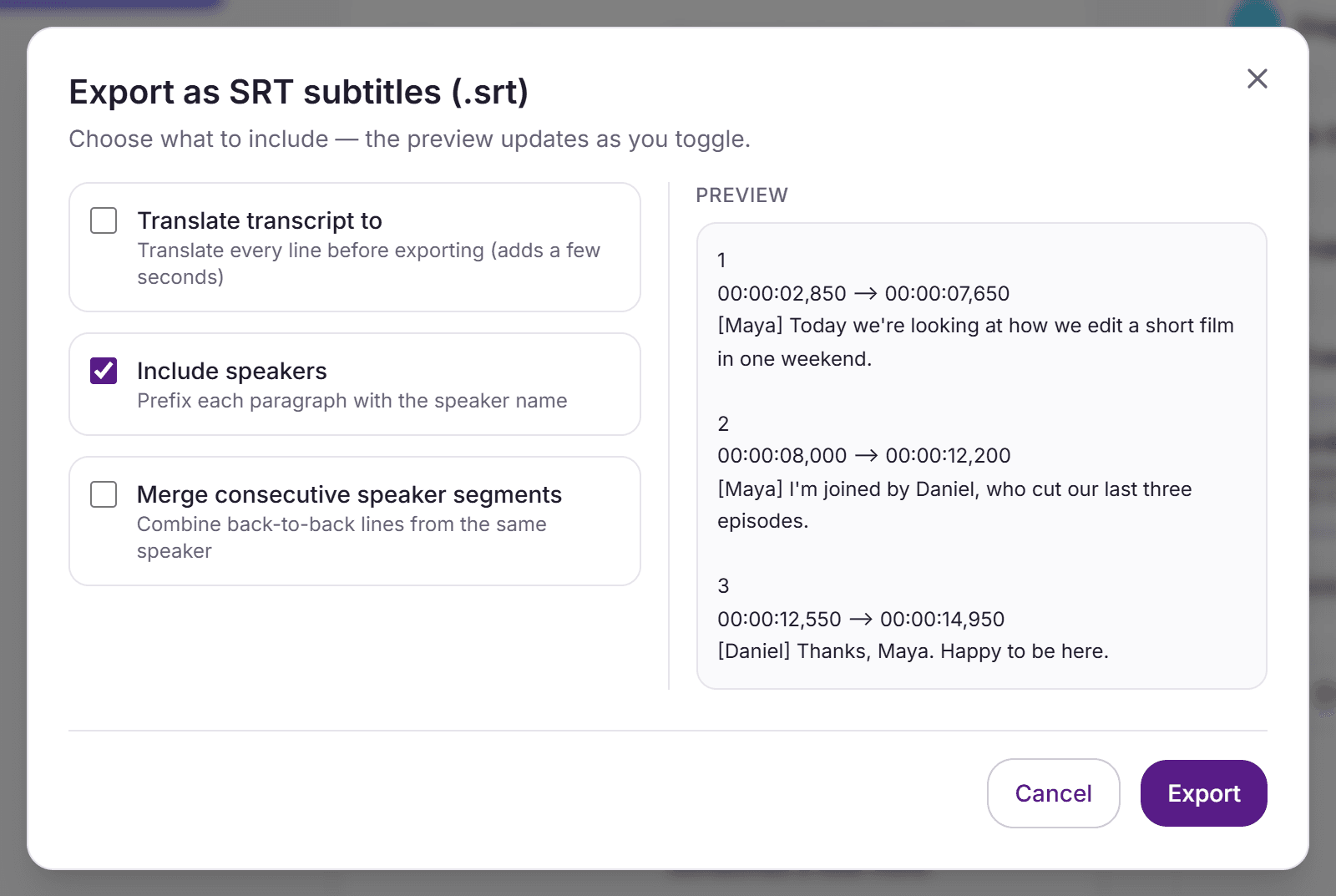
Upload the MP4 to the SRT generator and download a timed .srt, ready for any method on this page. Speaker labels are on by default; switch them off for clean captions.
Each cue is one line, usually up to 80 characters. That suits a soft track; for burned-in captions, especially on vertical video, re-break the long lines in the SRT editor first.
Try up to 5 minutes free without an account, or sign up for 30 free minutes, no card required.
Frequently Asked Questions
Can I convert an SRT file to an MP4?
No, because an SRT is only text with timings; it has no picture or sound. What you can do is combine it with your MP4: add it as a subtitle track, or burn it into the video so it always shows.
Can I add subtitles to an MP4 without re-encoding?
Yes, as a soft track: ffmpeg -i video.mp4 -i subs.srt -c copy -c:s mov_text output.mp4 copies the video and audio unchanged and finishes in seconds. Burning subtitles in always re-encodes, because the text becomes part of every frame.
Why don't my soft subtitles show?
Not every player shows subtitle tracks inside an MP4; some web players ignore them. Check in VLC under Subtitle → Sub Track. If the track must show everywhere, burn the subtitles in instead.
Which should I use for TikTok or Instagram Reels?
Burn them in, so the captions show while the video autoplays muted. Long lines are hard to read on a vertical screen, so re-break them in the SRT editor before you burn them in.
My subtitles are early, late or drift out of sync. How do I fix them?
Fix the SRT before adding it. In the free SRT editor, shift every cue by a set time, shift from one cue onward, stretch the timings between two points to fix drift, or convert the frame rate. Then add the corrected file to the video.
Accented letters look wrong after burning the subtitles in. Why?
The SRT was probably saved in an older encoding such as Windows-1252. Save it again as UTF-8 in a text editor and run the command again. SRT files exported from VexaScribe are UTF-8.